Surveys and audits are completed during a call from the Daily Calls list in the IntelliBrand mobile app.
You can complete:
Surveys – to capture structured information about the call or customer
Audits – to record product status and related audit details
Audit Surveys – short surveys linked to each product in an audit
Completing a Survey
Open the Surveys tab
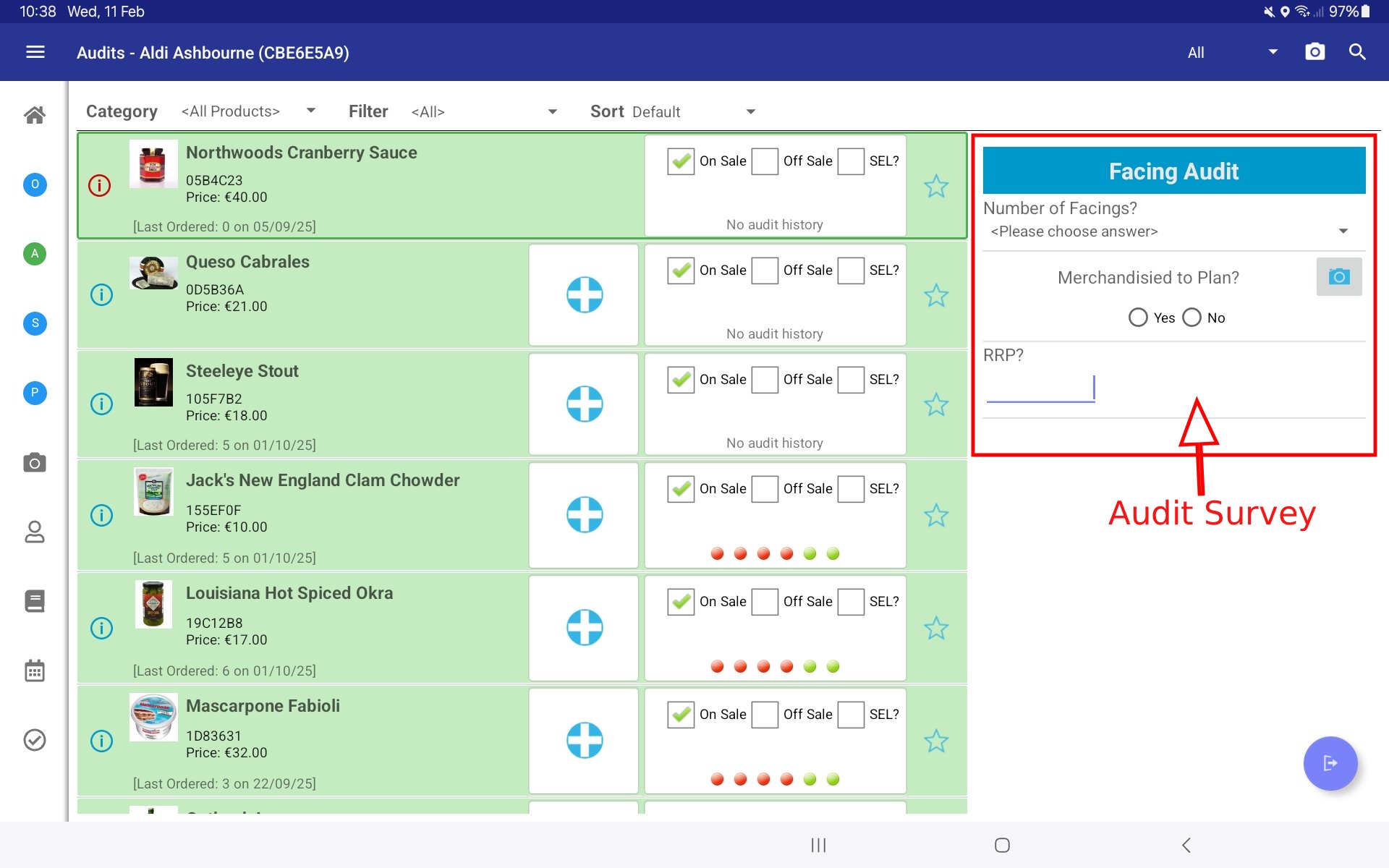
While in a call, tap the Surveys tab by selecting the “S” icon on the left-hand side.
Understand the layout
The survey and list of questions appear on the left.
The answer area for the selected question appears on the right in the main screen.
Answer the questions
Complete each question in the main panel.
Question types may include:
Numeric (numbers only)
Text (free text)
Yes/No
Other configured types as required
Move between questions
Use the arrow buttons to move to the next or previous question, or
Tap directly on a specific question in the list on the left to jump to it.
Working with multiple surveys
If more than one survey is available for that customer, once you finish all the questions in the current survey, the app will automatically move to the questions in the next survey.
Leaving the Surveys screen
When you have completed all required surveys, you can leave the Surveys screen by tapping Home or selecting any other tab on the left.
When surveys are enforced
When you finish the call and select a completion code, you may be forced to return and complete outstanding surveys if required questions are not answered.
Whether this happens depends on the settings for the completion code (e.g. Enforce Surveys enabled in the console).

Completing an Audit
Open the Audits tab
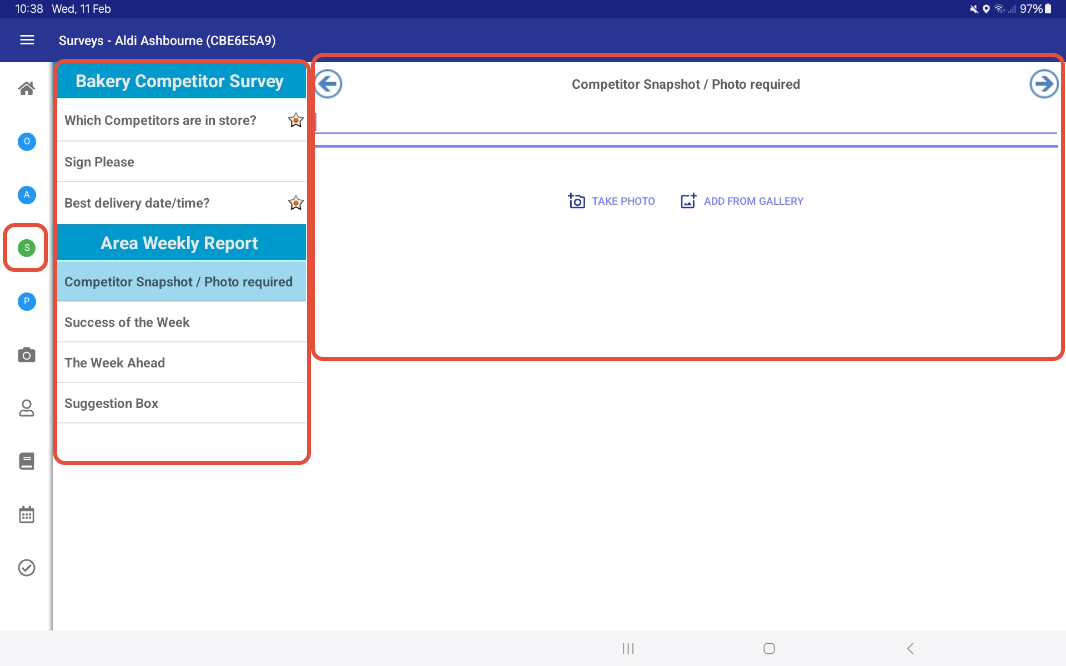
While in a call, tap the Audits tab by selecting the “A” icon on the left-hand side.
Confirm you want to complete an audit
A dialog box will appear asking if you want to complete an audit.
Tap Yes to continue.
View the product list
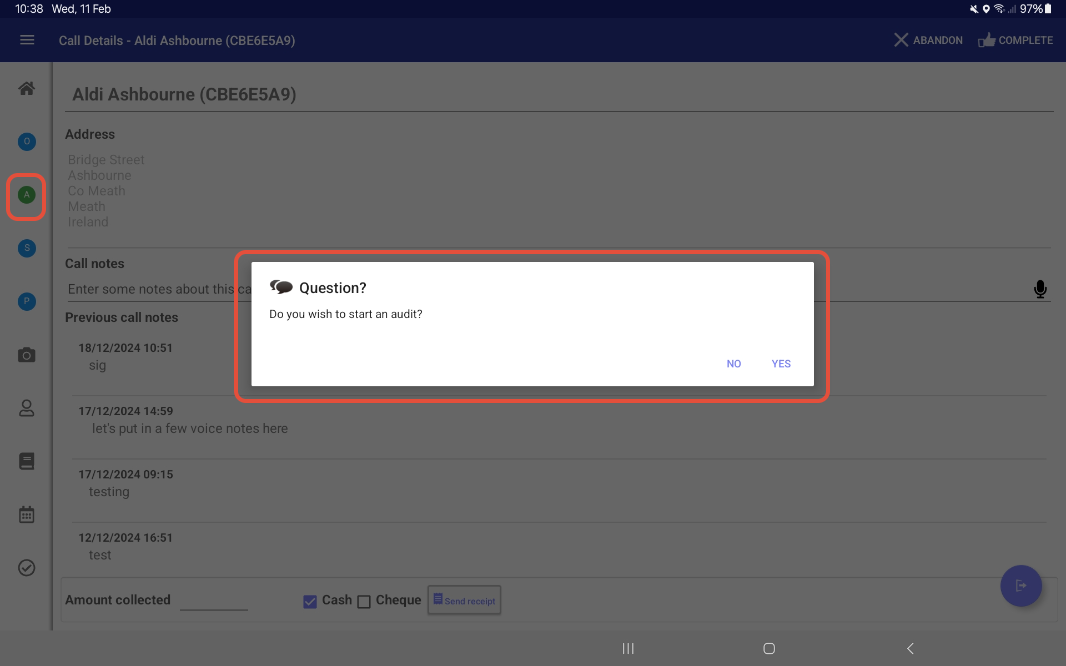
A list of products will appear for auditing.
Set product status
For each product, you can record whether it is On Sale or Off Sale (and any other available audit fields configured for your system).
When Audits are enforced
When you finish the call and select a completion code, you may be forced to return and complete outstanding audits if required questions are not answered.
Whether this happens depends on the settings for the completion code
When an Audit Photo is required
Please visit the below linked article for more details on taking a photo during an audit.
Audit Photos - IntelliBrand app : WASP Technologies Support Desk
Completing an Audit Survey
An Audit Survey is a short survey that can appear within an Audit.
It is linked to individual products in the audit list.
The same audit survey can be completed for each product.
To complete an Audit Survey:
Open the Audits tab as described above.
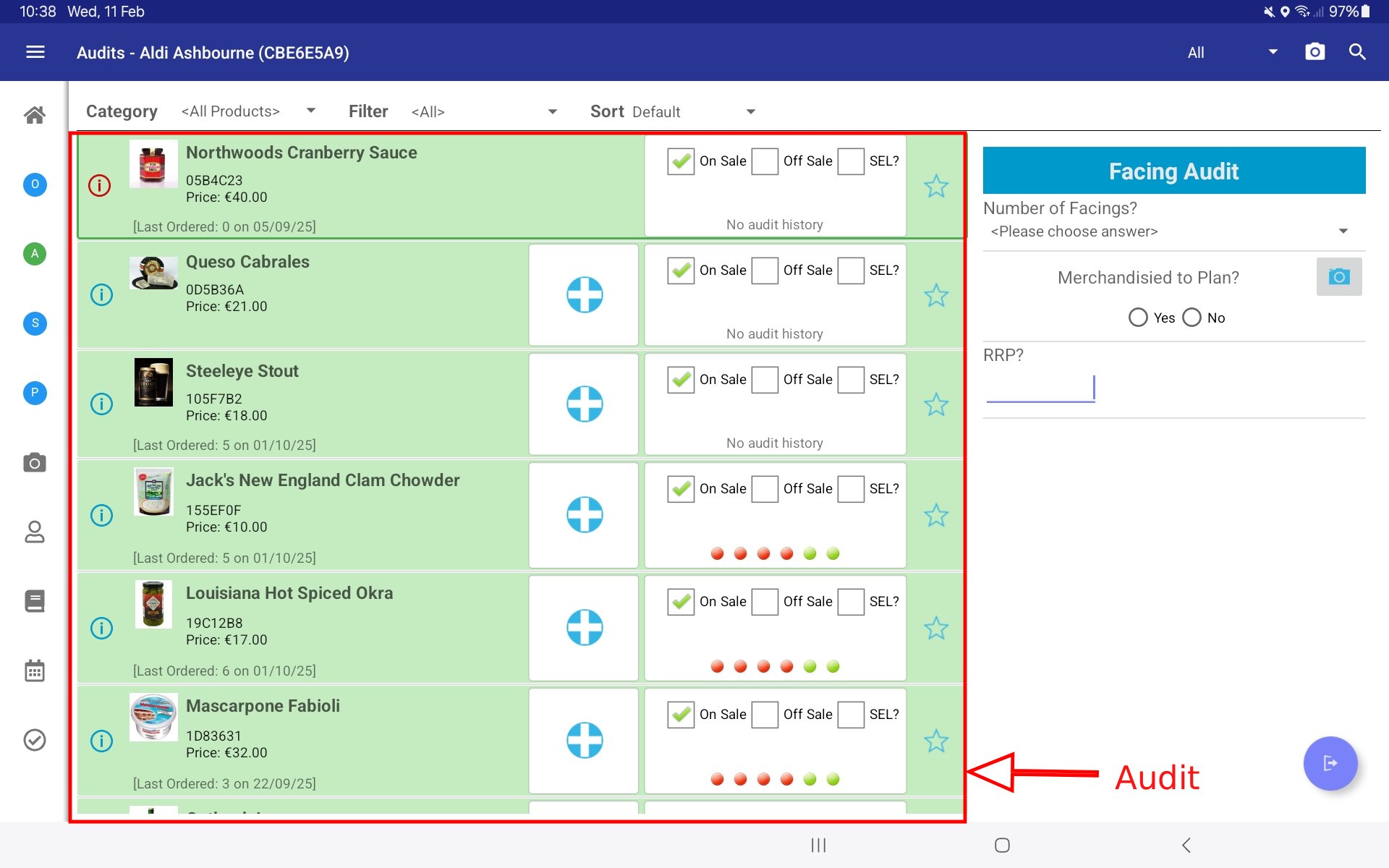
Select a product from the audit list.
If an Audit Survey is configured, its questions will appear for that product on the right.
Complete the survey for each relevant product as you progress through the audit.