Overview
A planogram image provides a clear visual reference for how products should be arranged on the shelf in-store.
Using planogram images within IntelliBrand delivers two key benefits:
- Consistent merchandising — Ensures uniform product placement across all store locations.
- Accurate auditing — Improves the reliability of in-store compliance checks.
When reps access planograms on their tablet during a call in the Audits screen, they can quickly compare the expected shelf layout against the actual in-store display. This makes it straightforward to identify gaps, misplaced products, or compliance issues. Reps can then mark whether the planogram is compliant and capture a photo of the current shelf layout for reference.
This guide covers everything you need to know about the Planograms feature, from initial setup and configuration in the console through to how reps use it on the tablet during store calls, and how to run a report on the data captured
Accessing Planograms
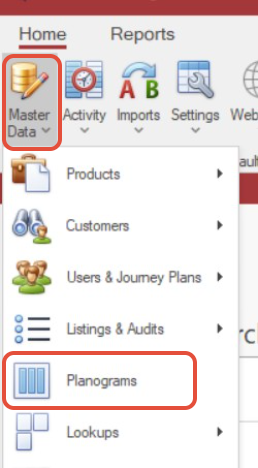
To open the Planograms screen, navigate to:
Master Data > Planograms
Creating a New Planogram
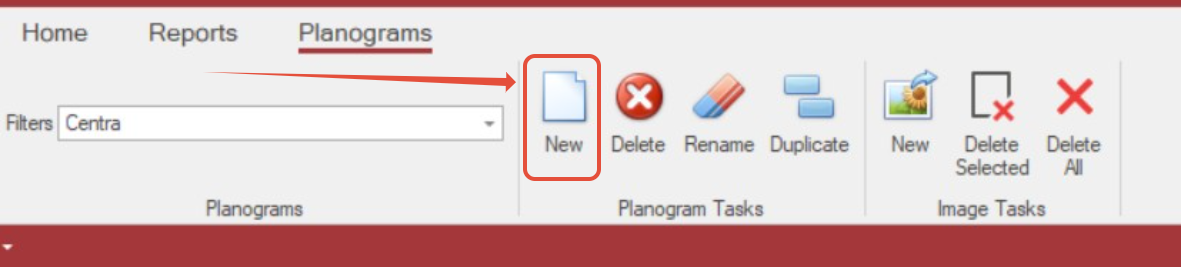
How to create a new planogram in the console:
Select New.
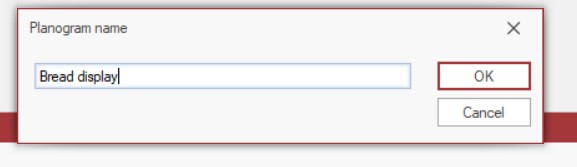
Enter a name in the dialog box that appears.
Click OK.
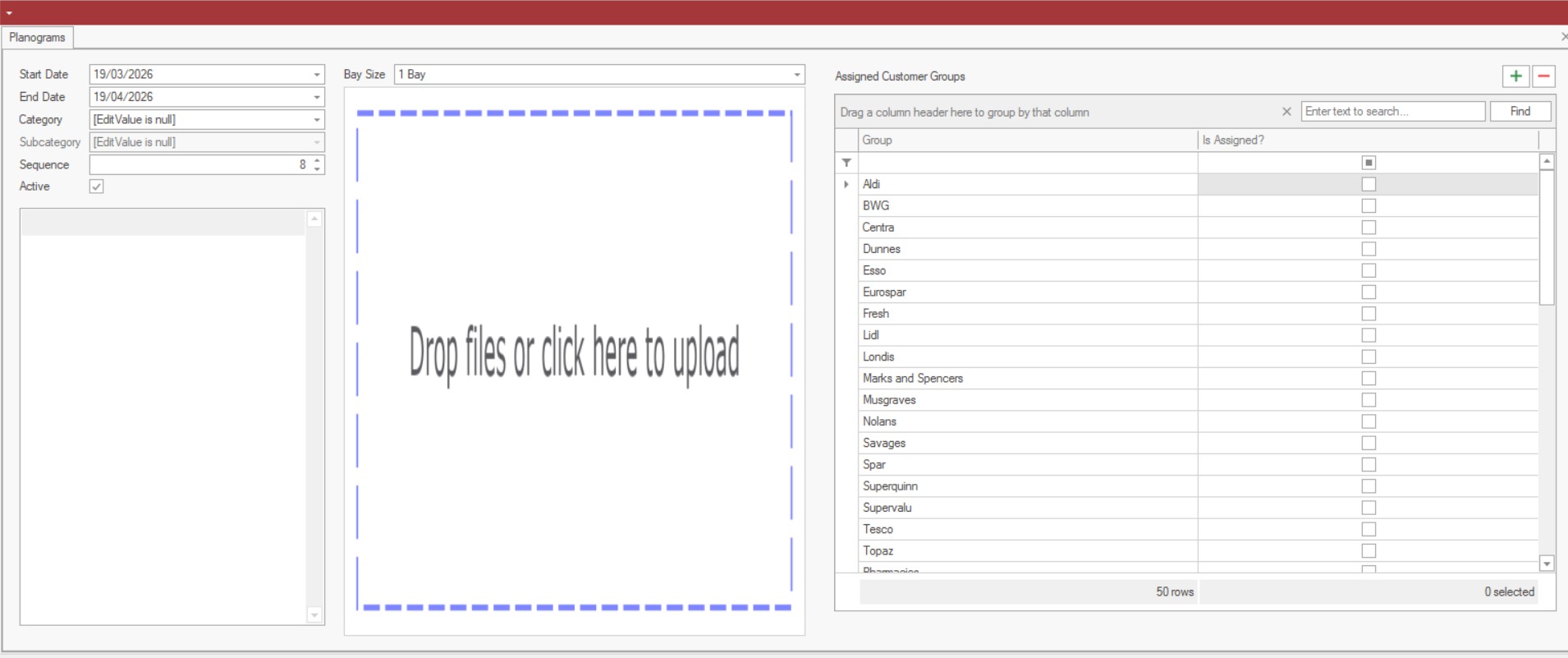
Your new, empty planogram will then open, ready for configuration.
Setting Up Planogram Details
In the panel on the left, enter the planogram details:
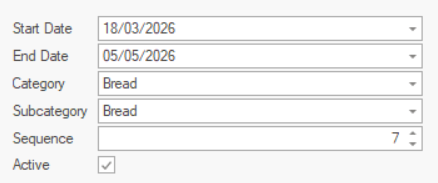
- Start Date / End Date — Define the date range during which the planogram is active.
- Category / Subcategory / Sequence — Assign the relevant product classification and display order.
- Active — Tick this checkbox to activate the planogram. You may prefer to leave this unticked until setup is complete.
Category and Subcategory Requirements
When a planogram is assigned to a specific Category and Subcategory, the same category and subcategory must also be present in the audit listing. If they do not match, the planogram will not appear for the rep.
Example: If a planogram is assigned to the Bread subcategory, only products listed under that subcategory will trigger the planogram during an audit. A product such as Irish Brown Bread, which sits under the Irish Bread subcategory, would not match and the planogram would not display.
To avoid category-related filtering altogether, you can leave the Category and Subcategory fields unassigned. The planogram will then appear regardless of which products are included in the audit.
Adding Images
Uploading Your First Image
In the middle panel, add an image using either of the following methods:
- Click the upload area to browse and select a file from your computer.
- Drag and drop an image directly into the upload area.
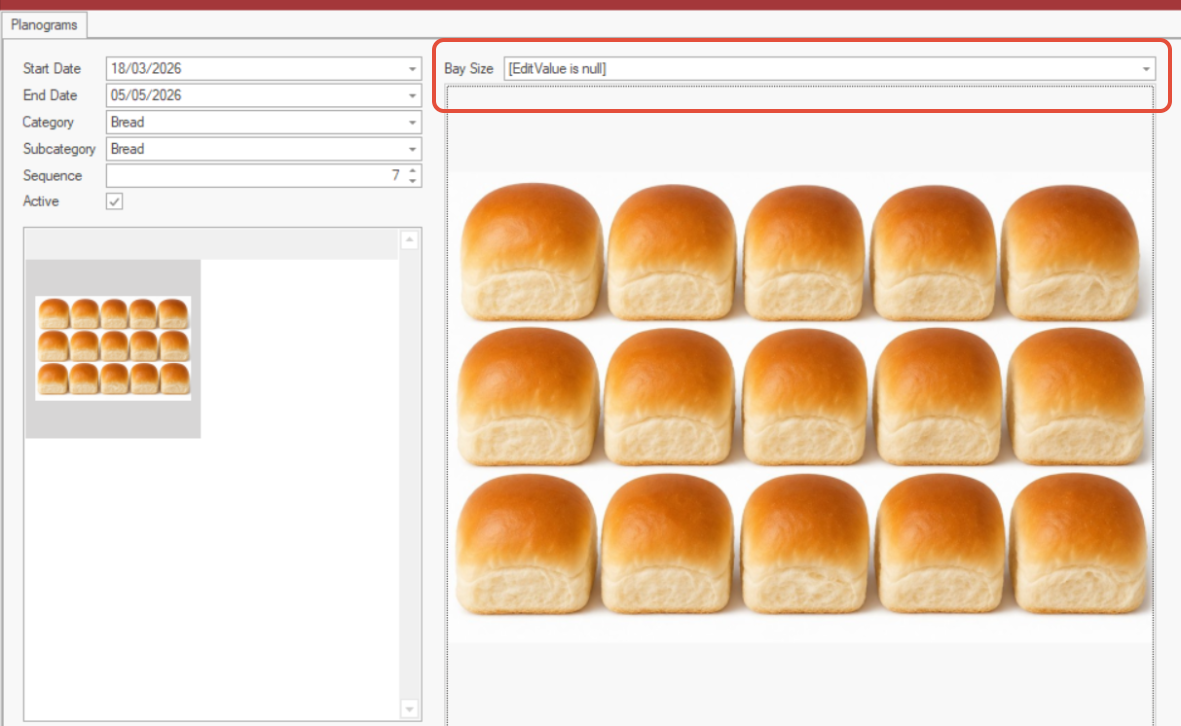
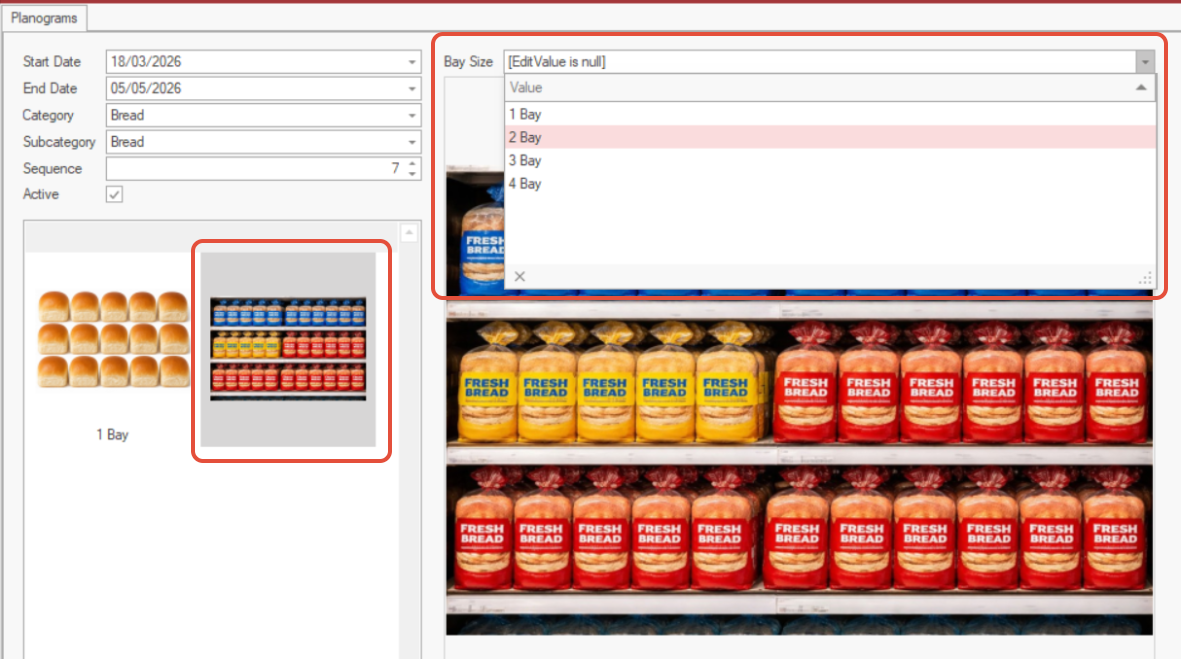
Once the image has been uploaded, assign a Bay Size by selecting the appropriate option from the drop-down menu.
Adding Additional Images
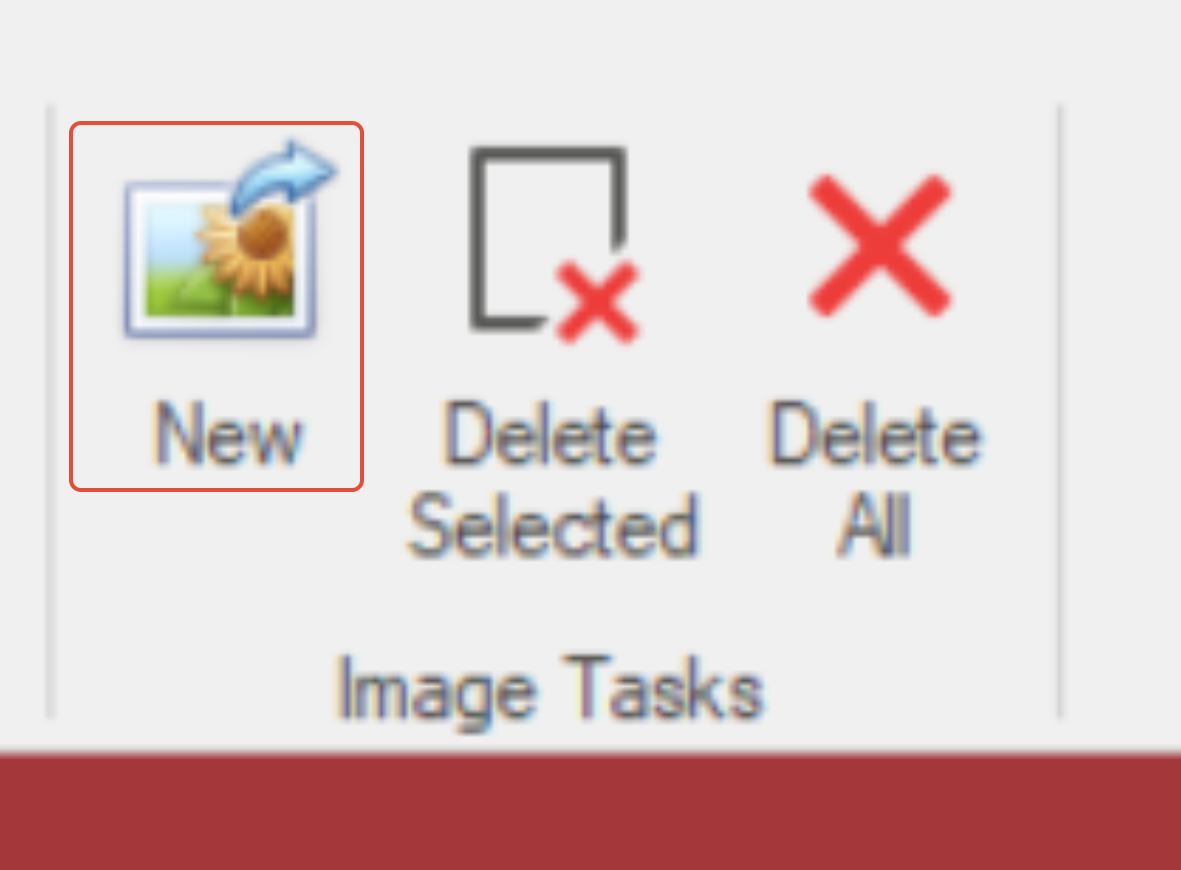
- In the Image Tasks section, select New.
- Choose and upload the required image from your computer.
- Once the image has loaded, ensure it is selected, then assign the correct bay size from the drop-down menu.
Deleting Images
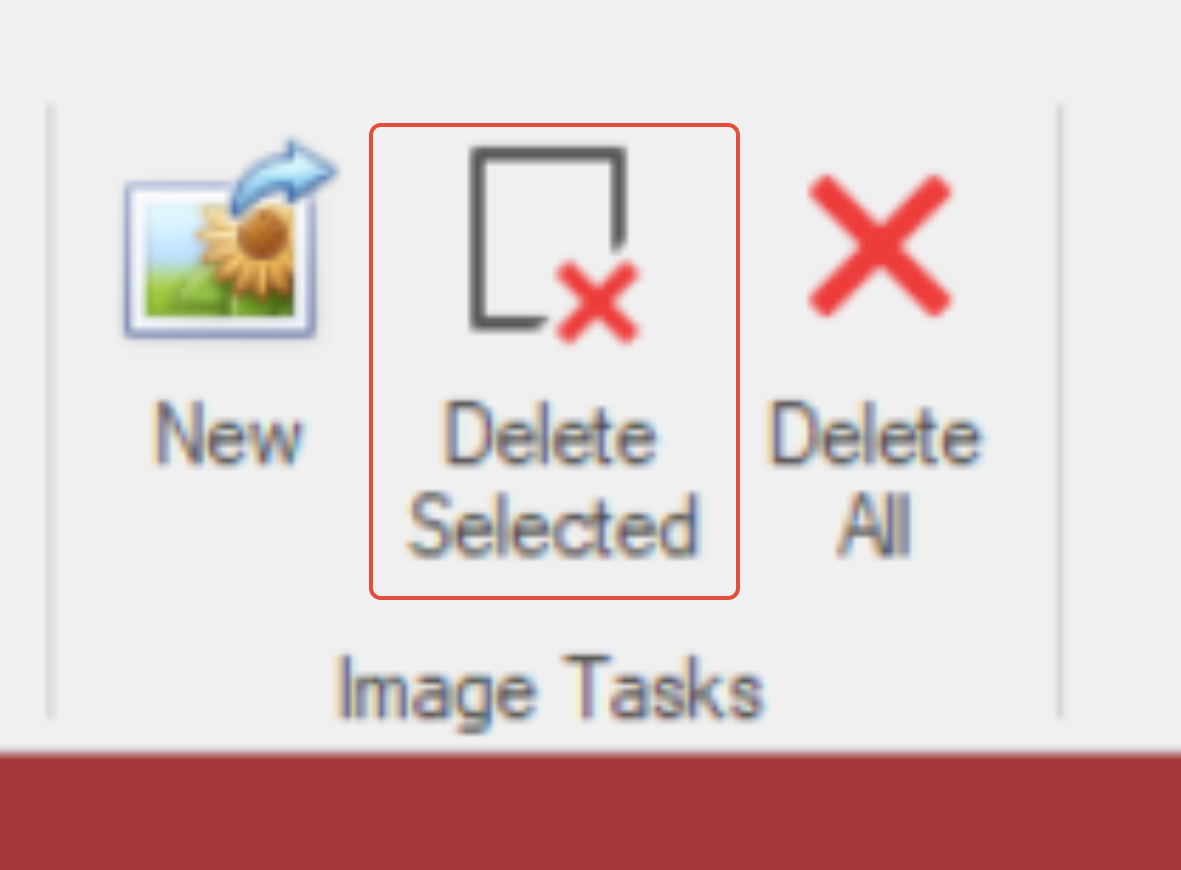
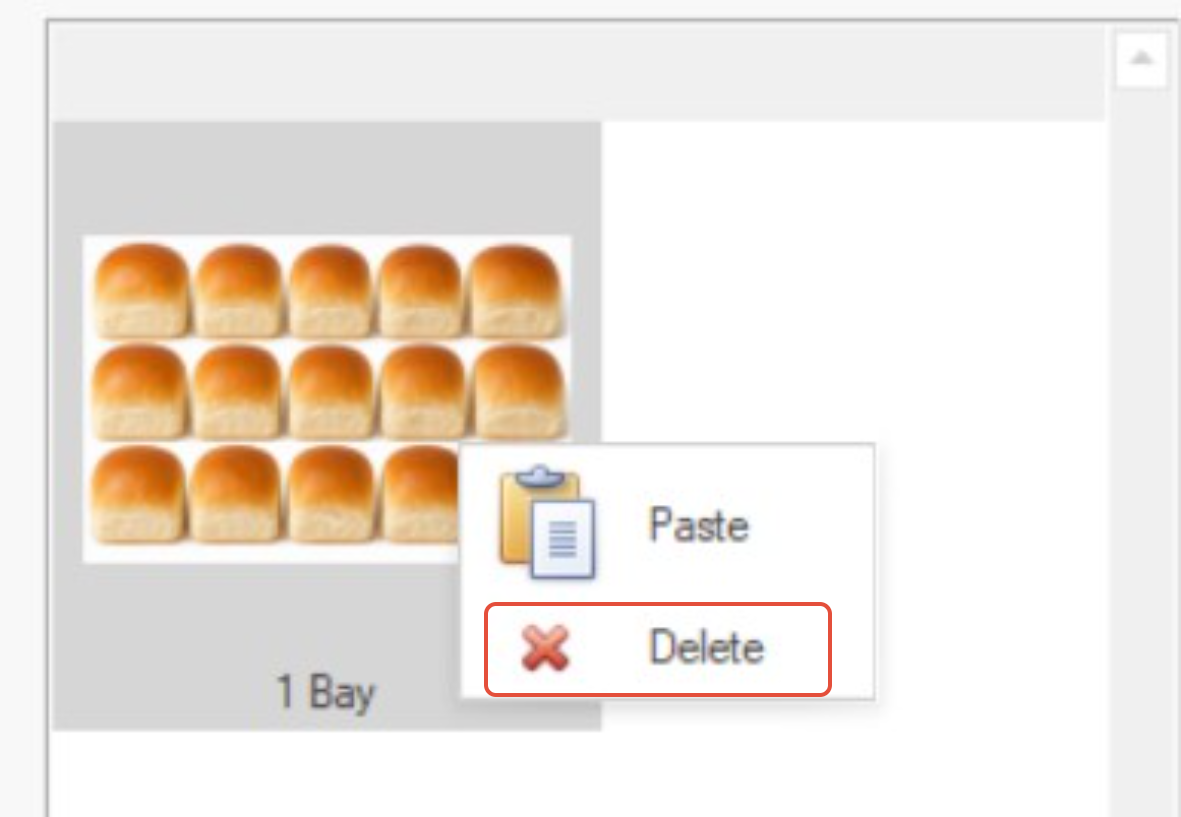
- To delete a single image, highlight it and select Delete Selected or right-click the image and choose Delete.
- To remove all images, select Delete All.
Assigning Customer Groups
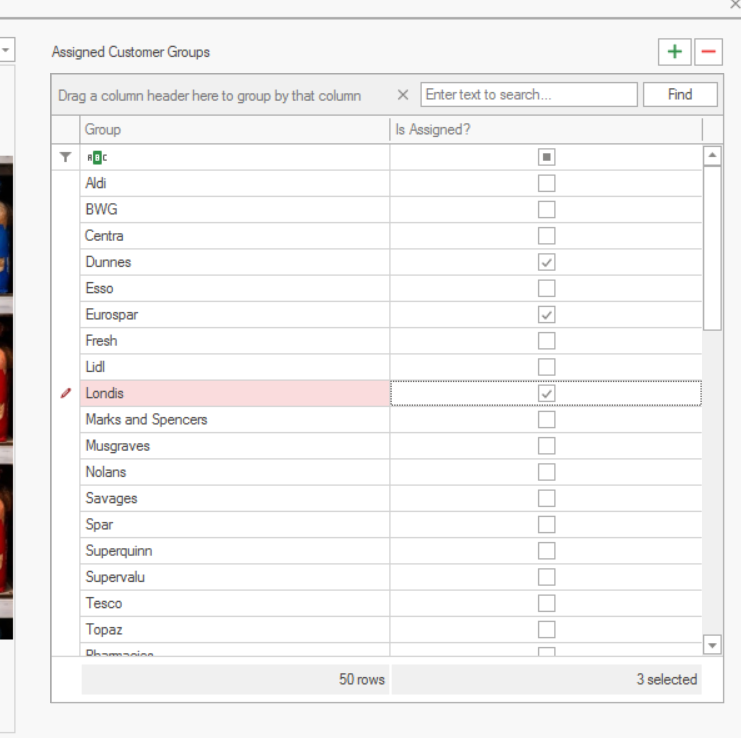
In the right-hand panel, assign the planogram to one or more customer groups.
To quickly assign the planogram to all available customer groups, select the green + icon.
Setting Up Bay Sizes
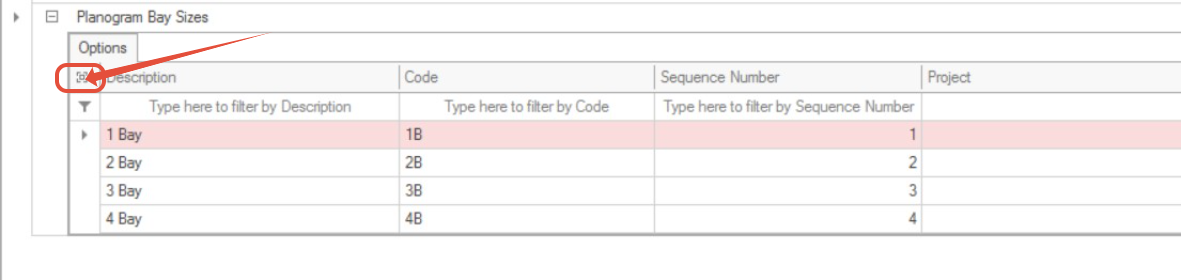
Bay sizes are configured under Lookups.
- Navigate to Master Data > Lookups > Lookups.
- Expand the Planogram Bay Sizes row.
- Click the magnifying glass icon to open the options screen.
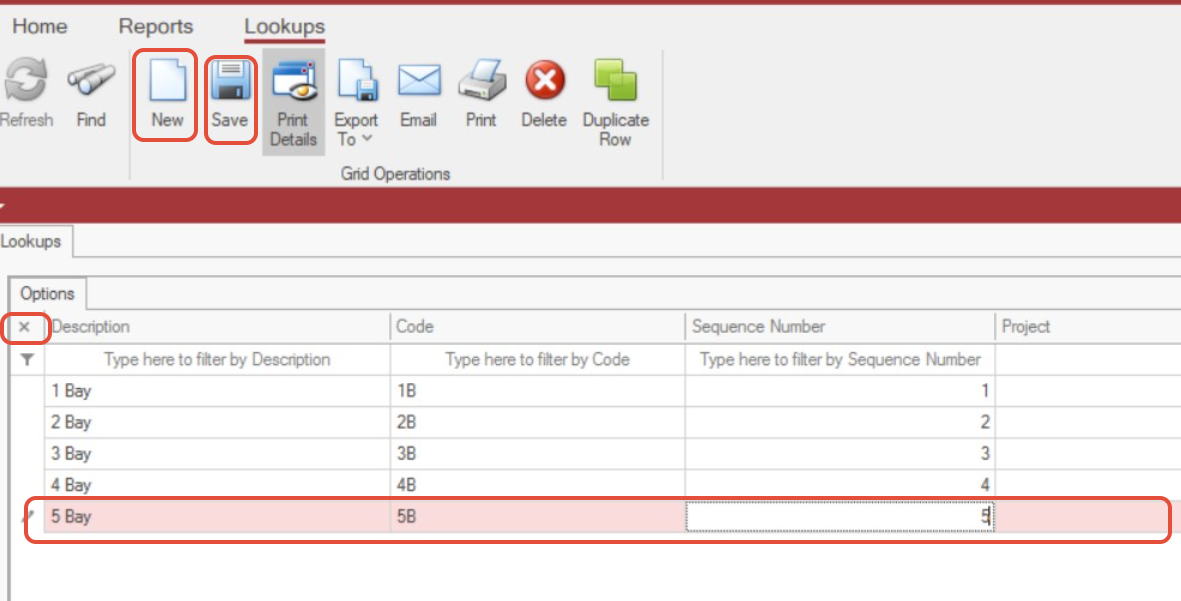
- Select New to add a row.
- Enter the required details and select Save.
- You may also close this screen by clicking the small x under the the word Options
Using Planograms on the Tablet
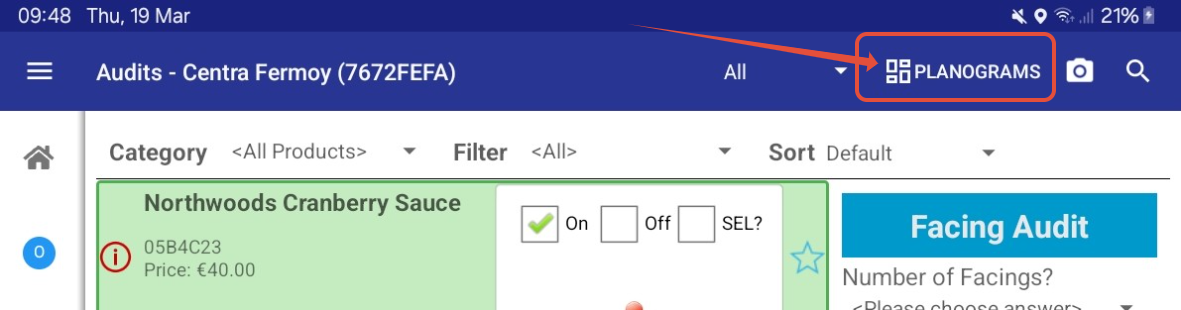
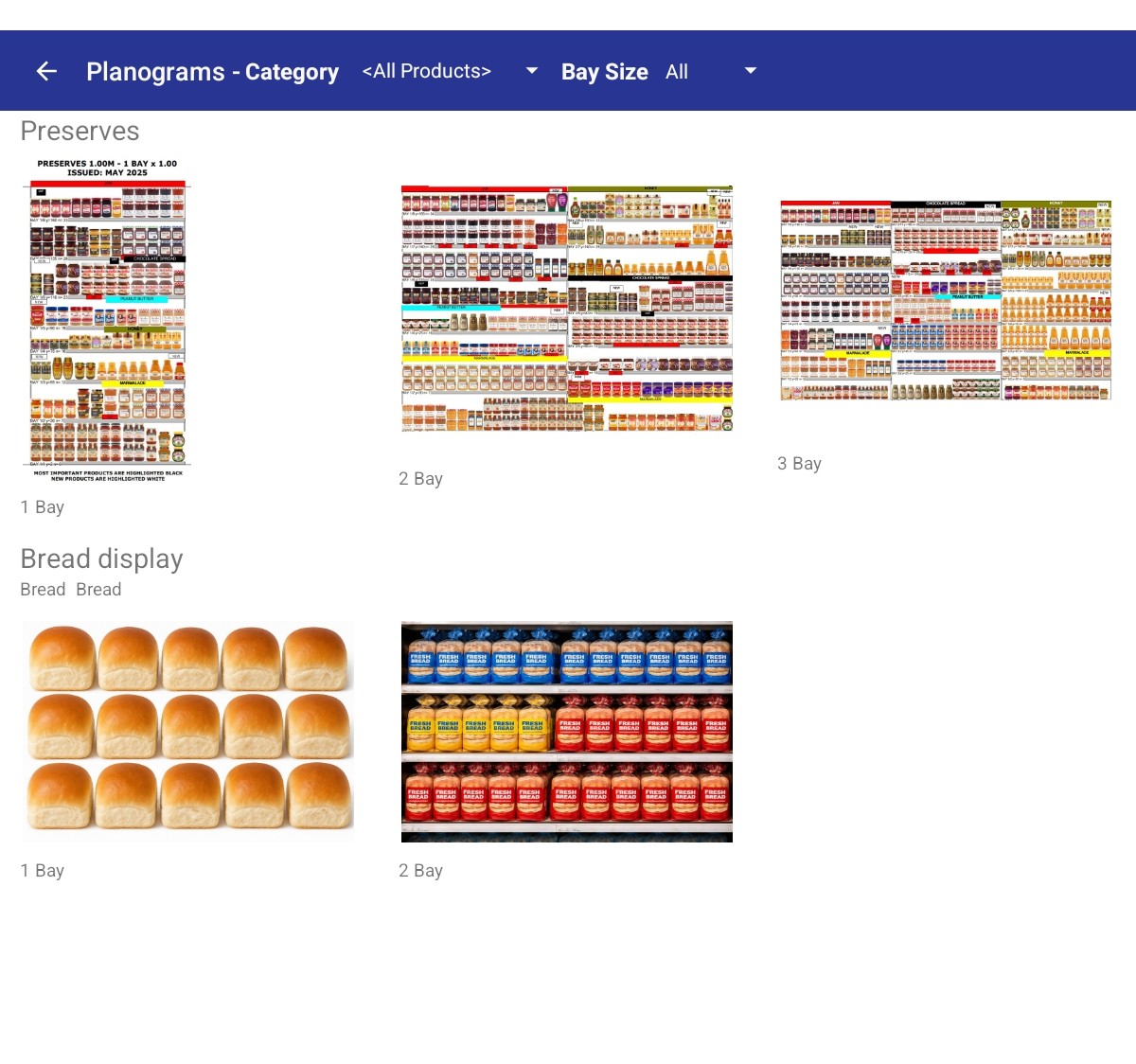
Planograms are available in the Audits section when a rep takes a call.
- Tap Planograms at the top of the screen to open the list of available planograms.
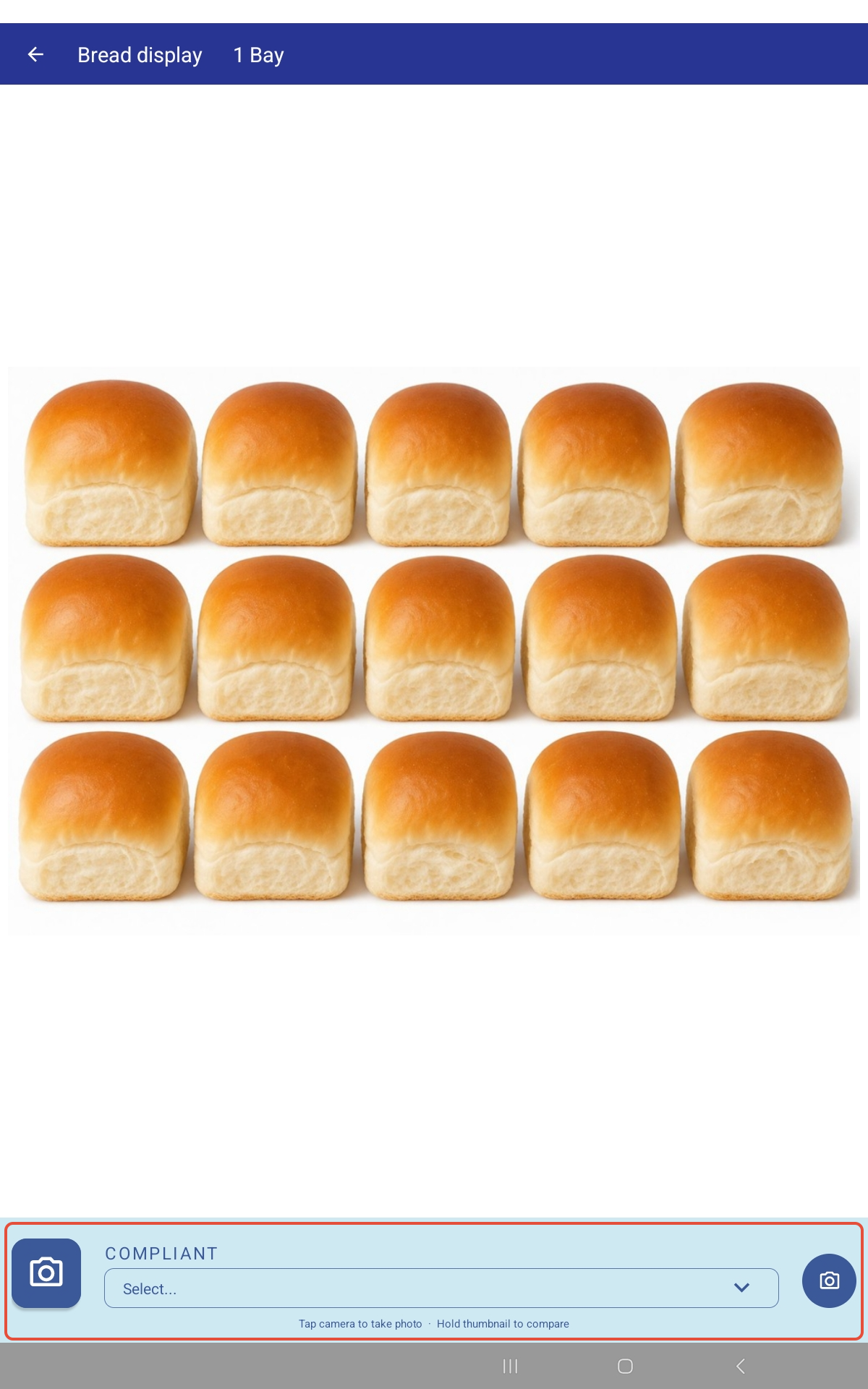
- Tap a planogram image to view it.
- Tap the camera icon to take a photo of the current shelf layout.
- To compare the photo against the planogram image, press and hold the photo thumbnail.
- To retake the photo, tap the camera icon again.
- In the Compliant drop-down menu, select Yes or No.
Once a compliance status has been recorded, the planogram image on the Planograms screen will display a coloured outline to indicate the result at a glance:
- Green outline — The planogram has been marked as compliant.
- Red outline — The planogram has been marked as not compliant.
Coloured outlines now visible below.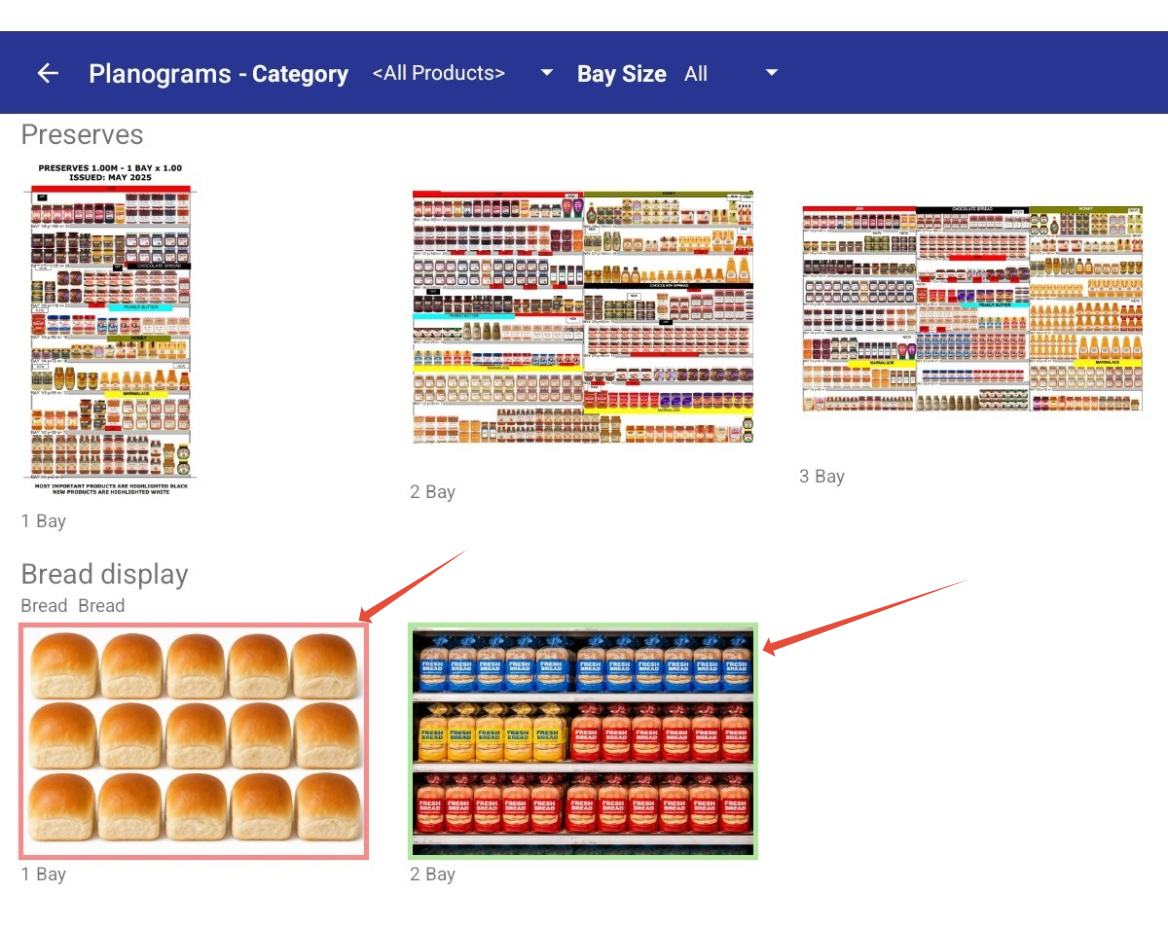
Reporting on Planogram Data
To view planogram data captured in the field, navigate to Reports > Audits >Planogram Compliance.
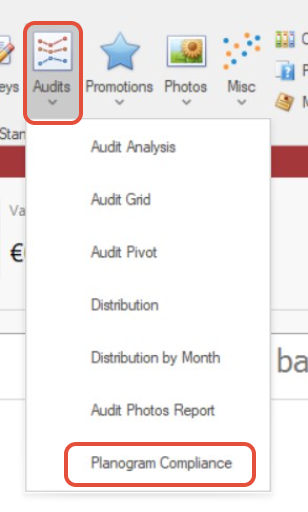
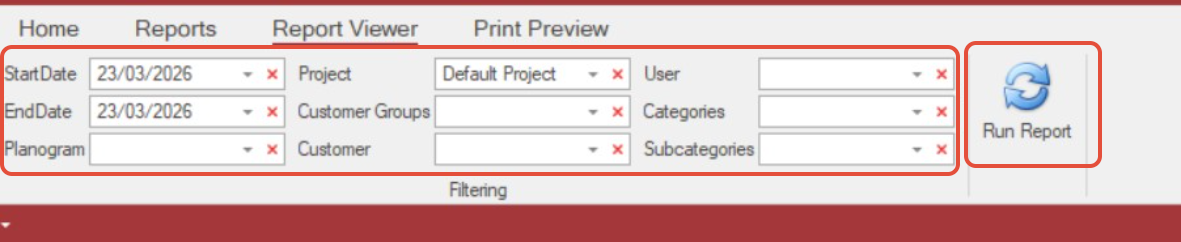
Select a Start Date and End Date in the filters panel, select the Planogram name from the dropdown-menu etc. then click Run Report.
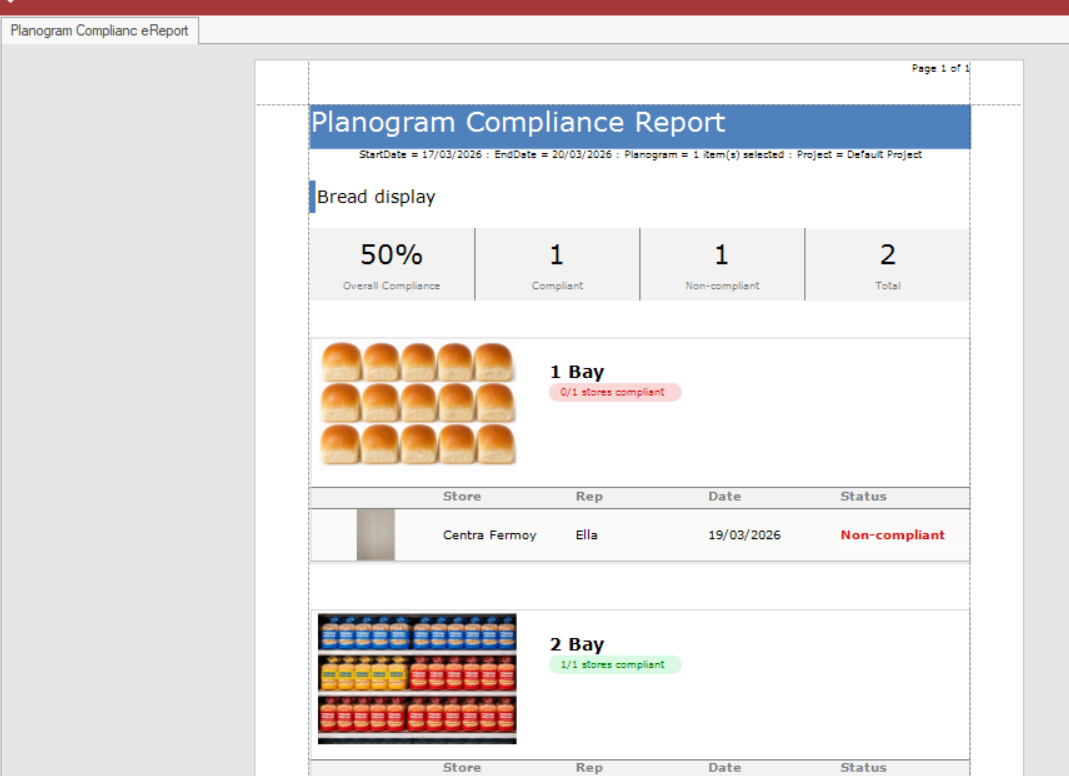
The results will display on screen, including the planogram image, the photo taken by the rep, and the compliance status.
Important: Reps must complete a Full Sync before planogram photos will appear in the report.