Viewing and Managing Price Lists
If your system uses Price Lists, you can view them in the console under:
Master Data > Listings & Audits > Price Lists
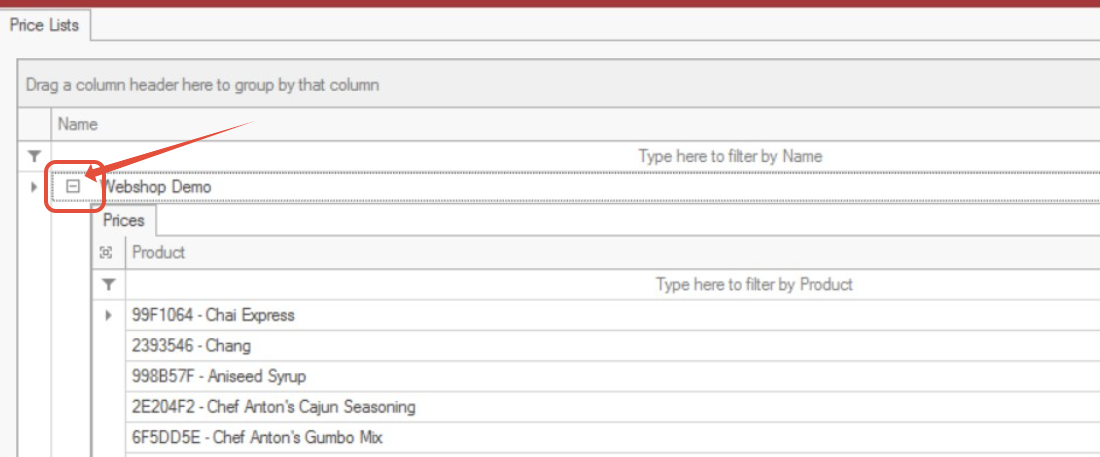
Expand the + icon to view all products included in a price list.
Creating a New Price List
Important: Only use this method if your Price Lists are not maintained via an automatic import.
If Price Lists are imported from a back-end system, any console changes may be overwritten during the next import.
To create a new price list:
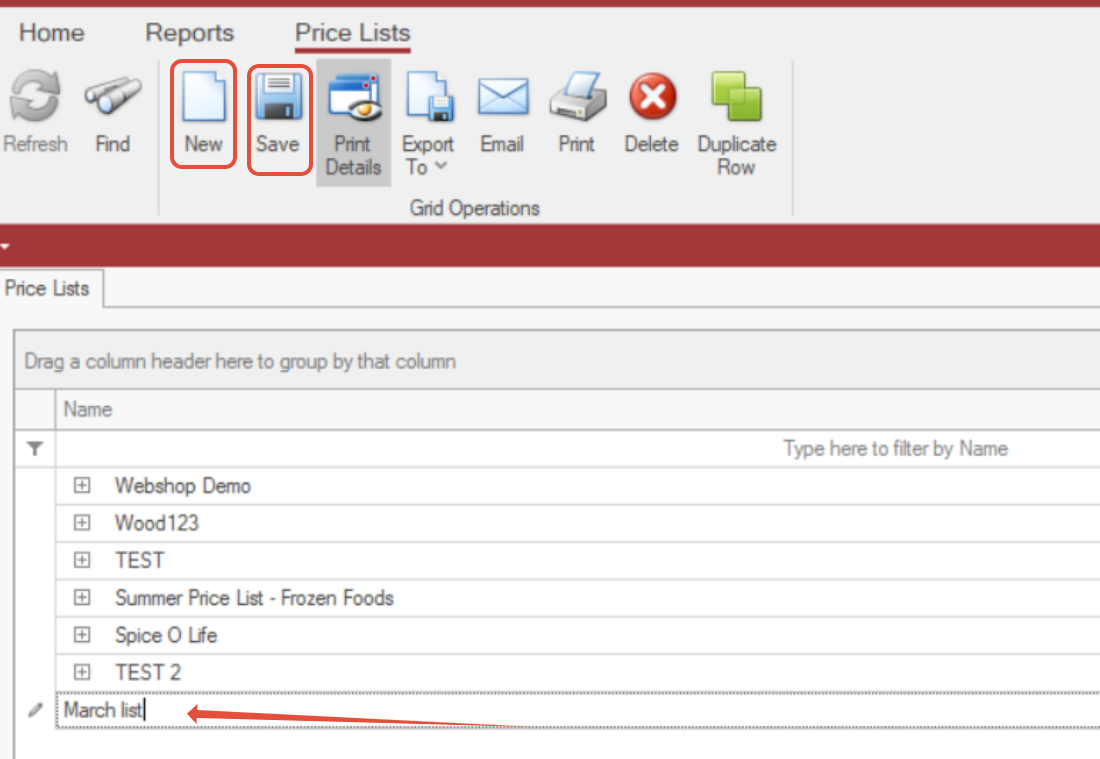
Select New.
In the empty row, enter the Price List Name and Code.
Click Save.
Adding Products to a Price List
To add products to your new (or existing) price list:
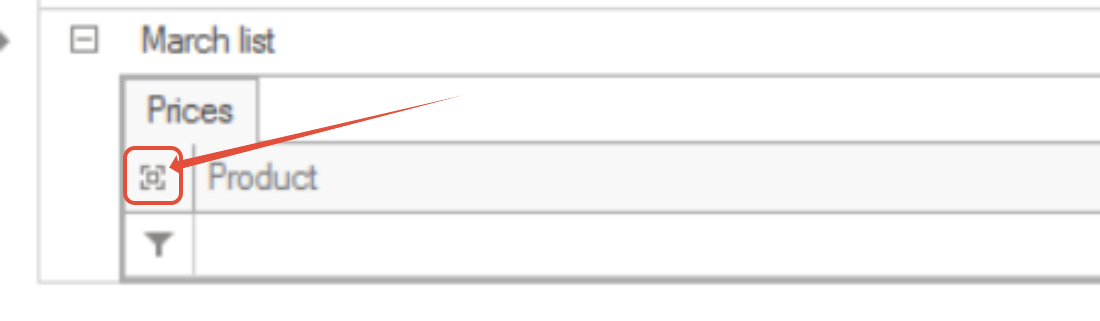
Click the magnifying icon to open the product list screen.
Select New.
In the new row:
Click into the Product cell and select the product you want to add
Enter the Price
(Optional) Enter a Sequence Number to control display/order
Click Save.
You will now see the price list with its assigned products.

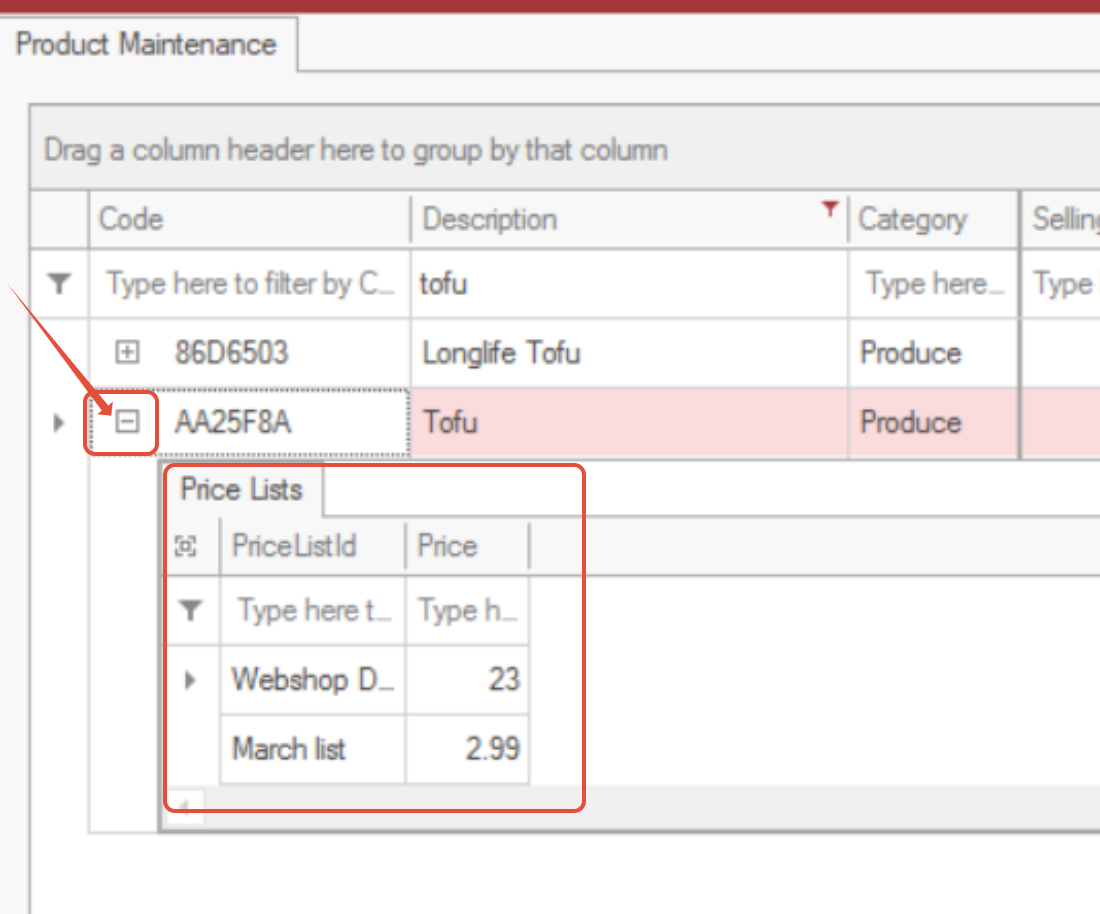
To Check the Products assigned to Price Lists
Go to Master Data > Products > Products.
Find the product and expand the + icon to view all price lists that product is assigned in.
To Check the Price List Assigned to a Customer
Go to Master Data > Customers > Customers.
Filter for the customer you want.
Scroll to the right to view the Price List column.
To open the assigned price list directly:
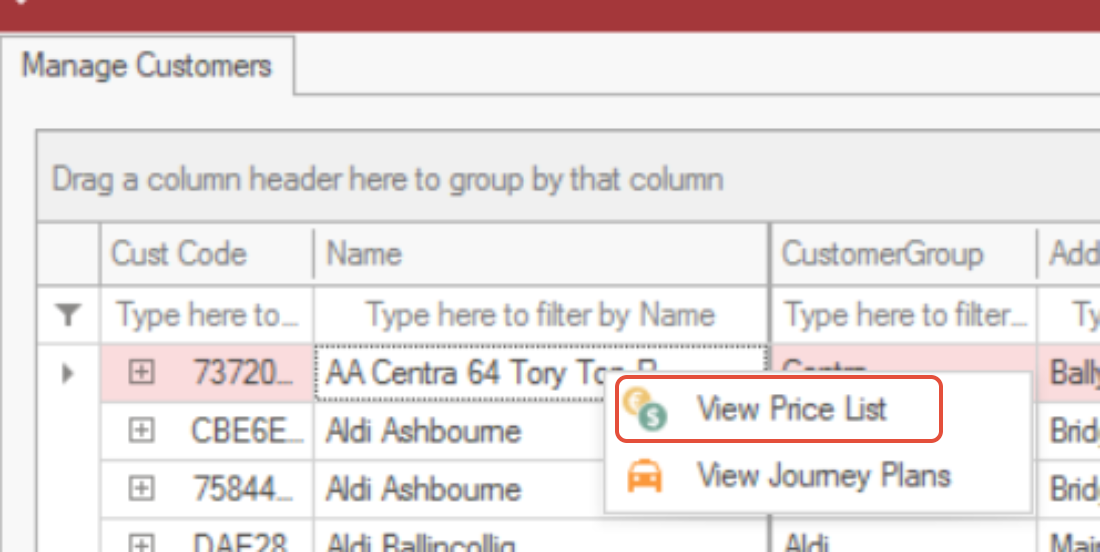
Right-click the customer and select View Price List.