
If an app user is experiencing issues with the device navigation bars overlapping the top or bottom of the IntelliBrand app, this can be adjusted in the device settings.
How to hide the navigation bar
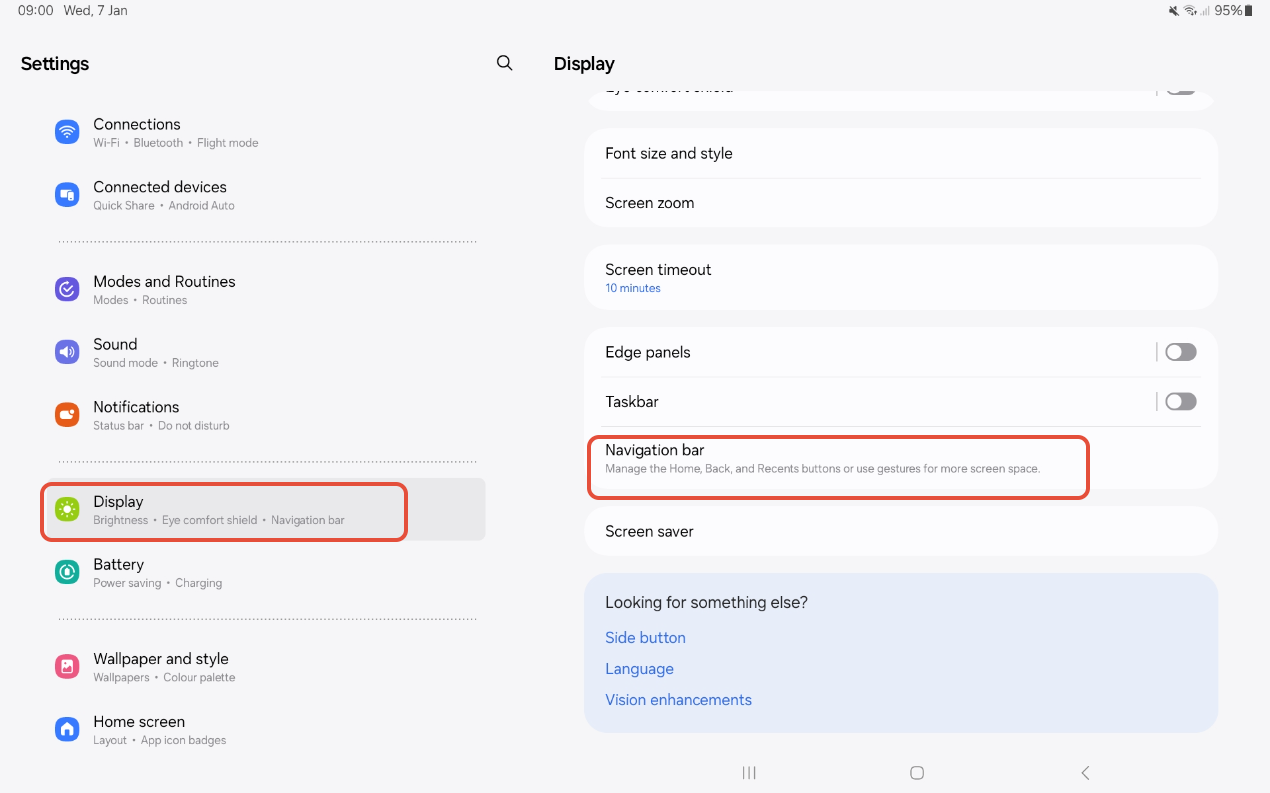
1. Open Settings and tap Display.
2. Scroll down and select Navigation bar.
3. You’ll see two options: Buttons (the default) and Swipe gestures.
- To hide the navigation bar, select Swipe gestures.
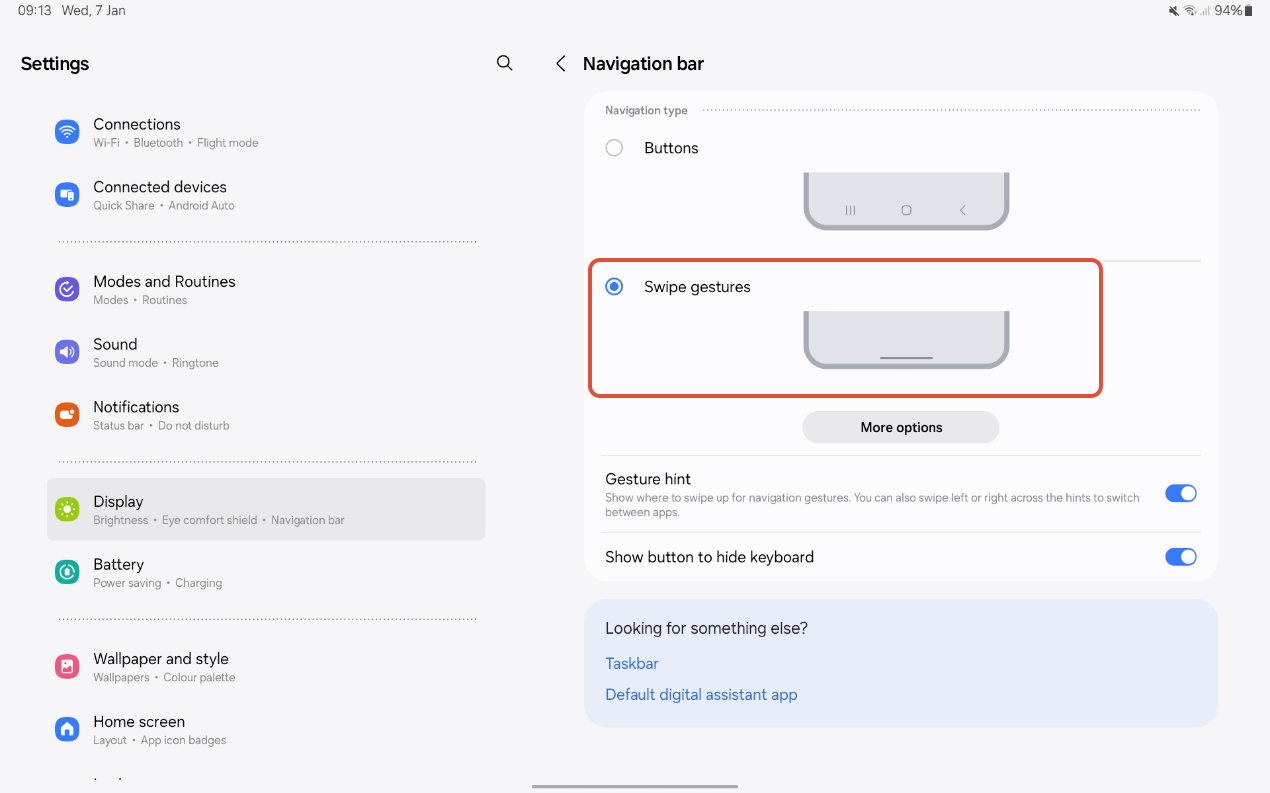
4. Under Swipe gestures, tap More options to choose between:
- Swipe from bottom, or
- Swipe from sides and bottom.
When Swipe gestures is enabled, the navigation bar will be hidden and gesture hints may appear at the bottom of the screen. If you’d prefer not to see these gesture suggestions, you can turn them off using the gesture suggestion toggles in the same menu.